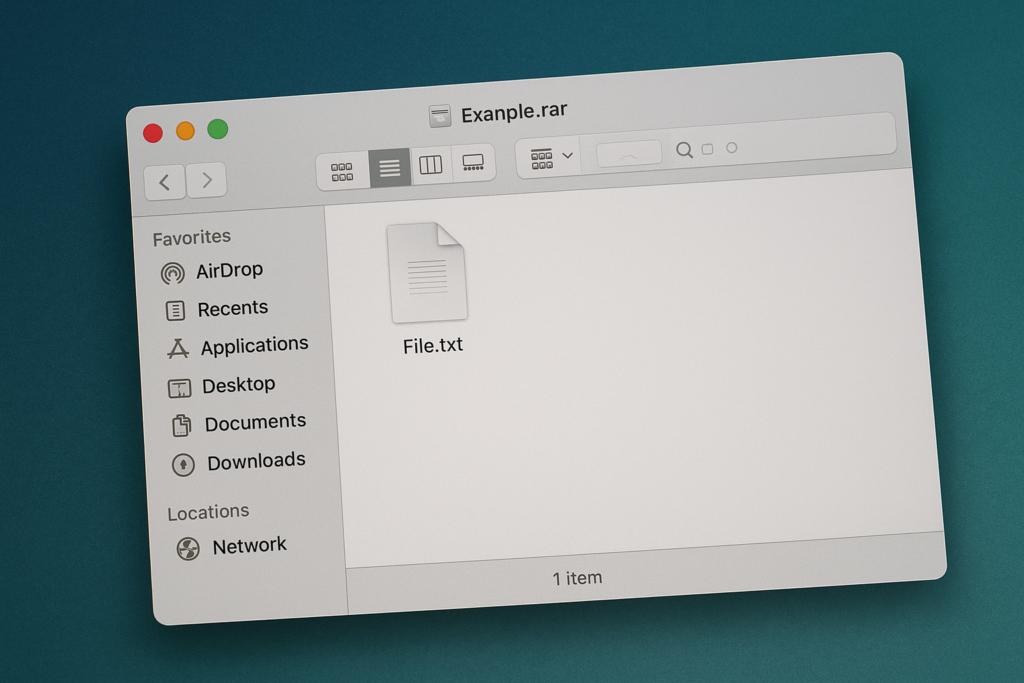
If you work daily with documents, class projects, downloadable files or files sent by other people, you will very likely encounter a .rar file at some point. And yes, unlike Windows, macOS cannot open RAR natively. But do not worry: unzipping RAR on Mac is simple if you know which tools to use.
In this guide you will learn, without unnecessary technicalities, how to open RAR files on macOS safely, which are the most reliable applications and how to avoid typical errors that often confuse users.
What is a RAR file?
A RAR file is a compression format developed by Eugene Roshal. Its goal is to reduce file size for more efficient sending and storage. It also allows splitting a large file into several parts, facilitating transfer.
Why doesn’t your Mac open it directly? Because Apple only includes native compatibility with formats like ZIP, leaving RAR and other advanced formats for external tools.
Options for opening RAR files on Mac
The Unarchiver (main recommendation)
- Free
- Maintained for years
- Very lightweight and compatible with many formats (RAR, 7z, ZIP, TAR, GZIP, LZH, CAB, among others)
Keka
- Well-recognised open-source Spanish project
- Compatible with a wide variety of formats
- Offers both decompression and advanced compression
BetterZip
- More professional option
- Allows previewing content inside files without extracting it
How to use The Unarchiver step by step
- Download The Unarchiver directly from the App Store. The official version is free and includes no adware.
- Configure formats: once open, tick RAR (should be default). You can tick other formats to open them with this app.
- Choose destination folder: select where you want files extracted — Desktop, Documents or a dedicated folder.
- Open the .rar file: simply double-click it. The Unarchiver does the rest.
- Review extracted files: content appears in the configured folder. If something fails, it is usually due to a corrupt or incomplete file.
Keep your Mac safe before opening compressed files
Compressed files can hide malware if they come from dubious sources. Before unzipping, we recommend reading: “Mac Backups” to protect your files, and “How to protect your Mac against cyber threats and malware”.
Tips to avoid common errors
- Verify file integrity. If the download failed, extraction will error.
- Do not open files from unknown sources. They could contain malware.
- Keep enough free disk space. Decompression can temporarily double or triple the size.
- Update your file extractor. Modern tools add compatibility with new formats.
At Setek we can help you configure your Macs, optimise their security, install reliable tools and resolve any technical queries. 👉 Need help with your Mac? Contact Setek for step-by-step advice.